How to Transfer and Secure Smart-Home Controls at New-Construction Handover
Transfer thermostats, leak controls, locks, cameras, and other smart-home systems from builder access to verified homeowner control.
The short answer
At handover, inventory every connected control and test two separate things: whether the home still works locally and whether the homeowner—not the builder or installer—owns the account, network access, history, and subscription. Record the model, fallback, transfer or reset path, warranty route, and verification result. Transfer or reset only from the current manual, and escalate any unresolved safety or access dependency before acceptance.How to Transfer and Secure Smart-Home Controls at New-Construction Handover
At handover, treat every connected control as part of the building system, not as a loose gadget. Test two separate things: whether the home still works locally, and whether the homeowner—not the builder or installer—controls the account, network access, history, and subscription. Inventory the model, fallback, transfer or reset route, warranty owner, and verification result. Use the current manual, then transfer or reset and record anything unresolved before acceptance.
The process below is for a United States homeowner taking possession of a newly built home. It covers connected thermostats, HVAC zoning controls, leak sensors and shutoffs, locks, cameras, video doorbells, gateways, bridges, and other installed controls. It does not decide alarm licensing, monitoring, privacy, access, electrical, mechanical, or building-code questions for a particular state, county, city, or town. Where a control is tied to an alarm, life-safety function, locked egress, wiring, HVAC equipment, or a water valve, ask the builder and the appropriately qualified local professional for the rule and the safe procedure in the jurisdiction where the home is located.
The handover decision is not “does the app open?” It is “what exactly can I control, through which path, under whose account, with what local fallback, and with what evidence that the builder’s access and billing have ended?” A green status icon is one observation. It is not proof that a thermostat can call the intended equipment, a leak shutoff can be operated manually, a lock has no old codes, or a camera has no prior viewer.
What should be complete before you accept a connected control at closing? #
Before accepting a connected control, the homeowner should have a complete device list, the manufacturer’s current transfer or reset instructions, a confirmed local fallback for any function that matters during an internet or account outage, homeowner ownership of the required account, a documented warranty and service route, and a written result for each verification test. If one of those is unknown, classify the row as document or escalate rather than silently accepting the gap.
Separate the four handover questions
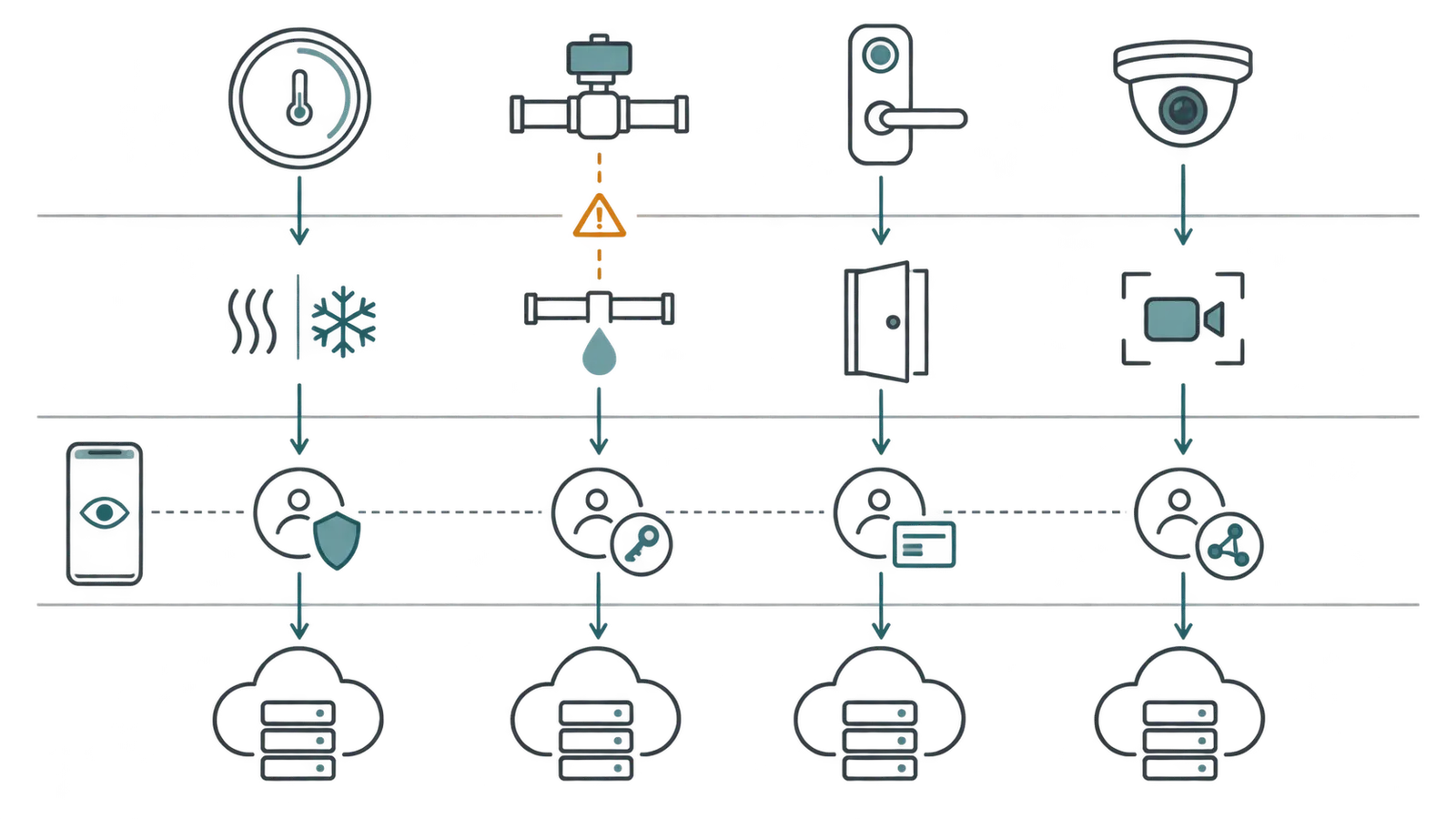
New construction often hides four different relationships inside one app tile:
- The physical device. This is the thermostat, sensor, valve actuator, lock, camera, bridge, hub, or controller mounted in the home. It may have a model number, serial number, QR code, MAC address, or installation label.
- The controlled building function. A thermostat may command heating and cooling. A zoning bridge may coordinate dampers and room sensors. A leak system may sense water and command a shutoff. A lock may control entry. A camera may monitor an approach or room. The device identity and the function identity are not always the same.
- The account and permissions. The app may show the builder, low-voltage installer, HVAC contractor, security company, homeowner, family members, or a service account. “Admin,” “owner,” “member,” “installer,” and “monitoring” can have different powers.
- The service layer. Wi-Fi, internet, cloud processing, video history, cellular backup, professional monitoring, storage, and a paid subscription can each be separate dependencies.
A handover is complete only when the homeowner can explain all four. The physical control can be present while the account remains with an installer. The account can be transferred while a bridge still uses the builder’s Wi-Fi. A device can be reachable in the app while its local control is unknown. A camera can be visible while the old owner’s history or subscription remains attached. Each is a different failure and needs a different next action.
Identify who is responsible for each step
The homeowner owns the decision and the records. The builder or developer usually owns the contractual obligation to deliver the home and any included commissioning or warranty response. The installing trade owns the technical handoff for the system it supplied or configured. The device manufacturer owns the instructions and any manufacturer warranty under its terms. An internet provider owns the service it sells, not the installed control. A security or monitoring company may own a separate account relationship. These roles can overlap, so write the name, company, phone number, email, contract reference, and expected action beside each unresolved row.
Ask for one coordinated handover session if several controls are integrated. A thermostat installer may know how an HVAC system was commissioned but not how a camera account works. A low-voltage integrator may know the hub and network topology but not the builder warranty route. A plumber may know the physical shutoff and override but not the app. The person demonstrating the app is not automatically responsible for the equipment’s underlying trade work.
Set acceptance boundaries before touching settings
Agree with the builder on what may be changed during the walk-through. Removing an installer from a user list, accepting an invitation, changing a homeowner password, and connecting a gateway to the homeowner’s Wi-Fi are account and setup actions. Opening an electrical enclosure, moving HVAC wiring, removing a lock from a door, bypassing a monitored alarm, or forcing a motorized valve are different activities. Do not turn a handover into an improvised repair visit.
The safest boundary is to collect information first, then make reversible account changes one system at a time. Do not factory-reset a device merely because the app is unfamiliar. A reset can erase schedules, calibration or commissioning settings, camera history, integrations, or the evidence needed to show what the builder delivered. First photograph or record the model and screen state without capturing passwords, private video, or personal data that you do not need. Then follow the exact model instructions.
The actual jurisdiction for a local rule is the state and the local authority having jurisdiction—such as the city, county, fire authority, or other authority named by the applicable rule—where the home is located. This guide does not determine whether a connected lock, camera, alarm, monitoring service, or access-control change requires notice, licensing, inspection, or a particular professional. If the builder says a device is part of a permitted or monitored system, ask for the responsible company and the relevant local contact before changing it.
The pre-acceptance packet
Request these inputs before the final handover appointment:
- the home’s connected-control schedule, low-voltage plan, HVAC zoning schedule, security schedule, and any smart-home scope or options sheet;
- manufacturer, model, serial number, firmware or software identifier if displayed, and physical location for every visible endpoint and every gateway, bridge, hub, or controller;
- a list of controlled equipment and the trade responsible for it;
- the correct app or web portal for each model, including whether two apps are needed;
- the current account owner, installer or service access, invited users, passcodes, PINs, keys, cards, tags, and recovery email or phone ownership;
- the Wi-Fi, Ethernet, cellular, battery, power, and cloud dependencies that the installer expects;
- manuals, setup cards, QR codes, invoices, serial-number records, commissioning reports, schedules, zone maps, valve locations, and maintenance instructions;
- builder warranty, manufacturer warranty, monitoring agreement, subscription, service contract, and claim instructions;
- the name of the person who will close each gap and the date by which the next demonstration will occur.
If the packet is incomplete, the next decision is whether the builder will provide the missing record before closing, whether the issue is recorded as a contractual punch-list item, or whether a qualified local professional must verify the function. Missing paperwork is not proof that the control is unsafe, but it prevents a confident ownership decision.
How do you inventory controls without guessing what the app means? #
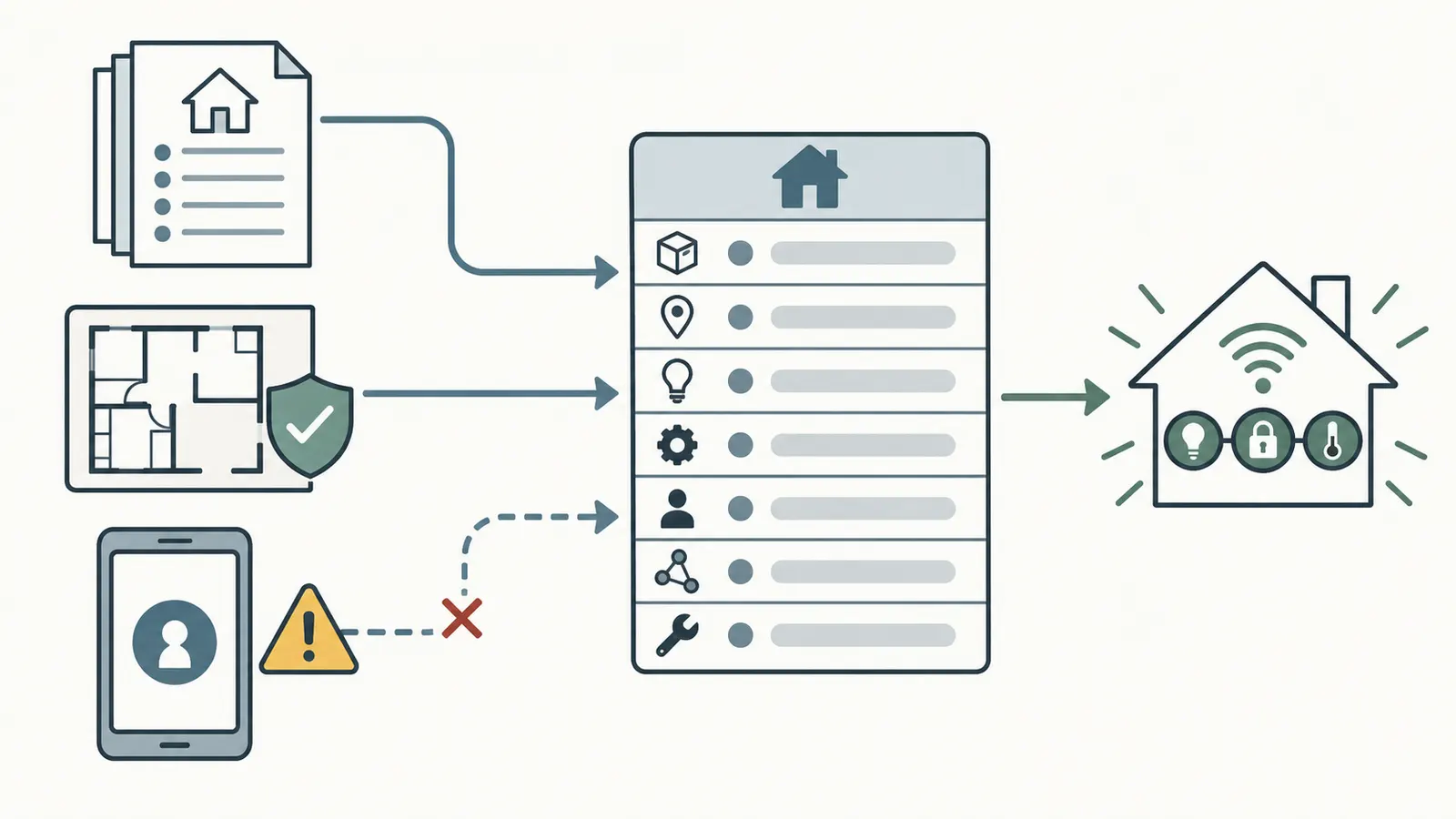
Inventory from three directions: the documents, the physical home, and the accounts. Reconcile the lists into one row per installed control or controlled subsystem. Do not make the app the source of truth; a cloud dashboard can omit a disconnected device, hide a bridge, merge multiple zones, or display a friendly room name that does not identify the actual model.
Start with the building-system map
Walk the home with the builder’s representative and mark every control on a simple floor plan or room list. Include equipment rooms, mechanical closets, attic or crawlspace locations that are safely accessible, exterior gates, entry doors, garage doors, utility rooms, and network cabinets. Do not enter a confined space, climb an unsecured ladder, remove access panels, or reach near energized equipment to complete the inventory. Ask the responsible trade to identify concealed components.
For each room or system, ask four questions:
- What can the homeowner command here?
- What equipment responds to that command?
- What happens if the app, internet, or account is unavailable?
- Who can change the setting, reset the device, or receive the alert?
The first question finds endpoints. The second prevents a false pass where the app changes a number but no intended equipment responds. The third identifies local fallback. The fourth exposes hidden access and responsibility.
Use model and location evidence
Record the exact model, not just the brand. “Smart thermostat” is too broad: product generations can use different apps, account systems, wiring requirements, transfer procedures, and subscription terms. Record a serial or device identifier only in the private handover record; do not publish it or put it in a shared article or email thread without a reason. If a QR code is the setup path, record where the original card or label is stored rather than distributing an unredacted image.
Create a device naming rule that separates a human label from the manufacturer identity. For example:
T-01 | Upstairs hall | exact model | controls HVAC system A | local screen | app X
Z-01 | Mechanical closet | exact gateway model | coordinates zones 1–4 | bridge required | installer Y
L-02 | Back entry | exact lock model | physical latch | key and keypad | app Z
The code is only an internal label. It does not replace the model number. Use the same code in the builder’s punch list, the manual folder, the warranty record, and the verification log.
Reconcile physical, app, and account lists
After the physical walk, open each authorized app with the builder or installer present. Compare the app’s rooms, zones, devices, and users to the physical list. Note items that appear in the app but cannot be found, devices that are installed but missing from the app, and duplicate or generic names. An app may show a home-level integration rather than each underlying control. Ask the installer to identify the relationship instead of deleting an unfamiliar tile.
Platform documentation itself can require different apps for different device generations. Google says some Nest products continue to be set up or controlled in the Nest app after migration while other Nest and partner devices use the Google Home app; the Google account FAQ therefore supports a model-by-model control-path record, not a single “Google device” assumption. The same principle applies across brands: record the exact setup app and the fallback app, if any, from the current manual.
For accounts, ask the current owner to show the user and permission screen without revealing a password. Record roles and email domains, not credentials. If the account is a builder-controlled shared mailbox, a trade’s personal email, or a generic installer login, treat that as an ownership gap. Do not accept a verbal assurance that the person will “remove themselves later”; record the action and verify the result after it is done.
Inventory data without creating new exposure
The inventory is security-sensitive. Keep the private working copy in a homeowner-controlled location. Redact passwords, recovery codes, door PINs, Wi-Fi keys, camera clips, faces, access schedules, and exact security weak points from ordinary punch-list email. Use a password manager for credentials and individual accounts for people who need access. CISA’s digital-home guidance treats thermostats, door locks, and other connected home devices as part of the digital home and emphasizes protecting account information such as usernames and passwords.
The handover record should prove the state of the control without becoming a new key to the home. A useful record says “builder installer removed from user list; homeowner owner role visible; test completed at 3:20 p.m.” It does not paste the homeowner’s password, a door code, or a camera screenshot containing private footage.
How do you classify each device as accept, transfer, reset, document, or escalate? #
Classify a device only after comparing its physical function, account state, network state, subscription state, and warranty route. “Accept” means the homeowner has enough evidence to own and use the control safely within its documented scope. “Transfer” means the platform supports a controlled invitation or ownership change that still needs acceptance and verification. “Reset” means the manufacturer’s current instructions require clearing the prior account or local credentials. “Document” means the function is usable but a non-blocking record, subscription, history, or responsibility item remains. “Escalate” means the homeowner cannot safely or legitimately close the gap without the builder, manufacturer, or qualified local professional.
Connected-control transfer matrix
The matrix below is the original Brictale contribution for this decision. It is designed to be copied into the homeowner’s handover record and completed with the exact installed model. The example entries are illustrative, not observations from a particular home and not a recommendation for any particular brand.
| Device and model | System controlled | Local fallback | App or cloud dependency | Current account owner | Reset or invitation action | Wi-Fi and subscription dependency | Installer access | Warranty route | Homeowner verification result | Decision |
|---|---|---|---|---|---|---|---|---|---|---|
| Illustrative: exact thermostat model, T-01 | HVAC system A, upstairs zone | Local temperature change shown in manual; HVAC response to be demonstrated | App required for remote schedule; exact app to be recorded | Builder or installer until transferred | Accept invitation or remove old account exactly as manual states | Home Wi-Fi; subscription unknown until terms checked | Installer role shown/removed | Builder HVAC scope plus manufacturer terms, to be confirmed | Local setpoint, equipment response, account owner, and remote test recorded | Transfer or escalate |
| Illustrative: exact zoning gateway, Z-01 | Damper and room-zone coordination | Local gateway indicators only unless manual states more | Bridge/cloud may be required for configuration | Controls integrator | Transfer home; clear old Wi-Fi only if model instructions say so | Wi-Fi/Ethernet; paid service not assumed | Integrator access recorded | Builder/controls integrator responsibility split | Every named room mapped to intended zone; no wiring changed | Transfer or document |
| Illustrative: exact leak sensor/shutoff model, W-01 | Water alert and/or automatic shutoff | Physical valve or local control only if manual and plumber confirm | App for alerts and history; cloud dependency recorded | Builder, plumber, or installer | Owner transfer or reset per model; do not close valve as a casual test | Power, battery, Wi-Fi/cellular, subscription recorded | Installer and monitoring roles checked | Builder plumbing scope, manufacturer, or service contract | Sensor test and manual override demonstrated without unsafe manipulation | Accept, document, or escalate |
| Illustrative: exact lock model, L-01 | Entry door latch and access | Mechanical key, keypad, or local button as documented | App/cloud may manage users, history, or schedules | Builder/security installer | Remove builder codes and users; transfer/reset per manual | Batteries, hub, Wi-Fi, subscription if any | Installer/admin codes removed or documented | Builder door/hardware plus manufacturer terms | Key, local operation, homeowner code, old-user removal, and egress behavior checked | Transfer or escalate |
| Illustrative: exact camera model, C-01 | Exterior or interior video observation | Local view or recording only if manual says so; do not assume | App, cloud history, notifications, and subscription recorded | Builder/installer or prior account | Remove old account; factory reset only as documented | Wi-Fi, power, cloud storage, retention, subscription | Every viewer/admin removed or intentionally retained | Builder low-voltage scope plus manufacturer terms | Live view, notification, privacy setting, retention, and owner account recorded | Reset, document, or escalate |
| Illustrative: exact gateway/bridge, G-01 | Connects multiple controls | Local system behavior unknown until integrator explains | Often a dependency for downstream app controls; exact topology recorded | Controls integrator | Transfer or reset only after downstream dependency is mapped | Ethernet/Wi-Fi, power, cloud, and update path recorded | Integrator role and support term recorded | Builder/controls integrator/manufacturer split | Downstream controls still respond after network change test | Transfer or escalate |
The matrix is source-derived but not source-complete for an unknown model. Google’s moving guide gives concrete examples where removing a device and factory-resetting it are separate handoff actions, while Flair’s transfer procedure demonstrates a different pattern: invite the new owner, clear old network credentials on specified gateways, reconnect them, and complete the zoning configuration. Those examples are why the matrix asks for an action rather than prescribing one universal reset.
Use a transparent decision rule
For each row, use five Boolean inputs:
- L: local fallback or local behavior is confirmed for the function that matters;
- A: homeowner account ownership and required permissions are confirmed;
- N: network and cloud dependencies are known and, if required, tested;
- W: warranty, service, and responsibility route is recorded;
- V: the homeowner completed an observable verification and recorded the result.
The illustrative acceptance formula is:
ACCEPT = L × A × N × W × V
Each input is either 1 for confirmed or 0 for not confirmed. The multiplication is a simple gate, not a security score, reliability model, or probability. If any input is 0, the row cannot be marked accept. Use the failure to choose the next state:
- If the platform has a documented owner invitation and the homeowner has not accepted it, mark transfer.
- If the manufacturer says the prior owner must be removed or the device reset, mark reset only after preserving the needed records.
- If the control works but a non-critical service, history, or warranty record is not yet settled, mark document with an owner and due date.
- If the local function, safety dependency, access authority, model identity, or account release is unresolved, mark escalate.
The units in this example are Boolean confirmation states, not degrees of safety. Sensitivity is therefore immediate: changing one input from 1 to 0 changes ACCEPT from 1 to 0. For example, if a thermostat account is transferred and remote control works but local operation is not demonstrated, 1 × 0 × 1 × 1 × 0 = 0; the correct outcome is not “mostly accepted.” It is a recorded transfer or escalation with a specific missing test. If a camera’s app works but the old viewer list is not checked, the account-security gate remains 0 even if live video appears.
Originality brief: what this adds and how to check it
Current answers are fragmented: manufacturer help pages explain individual resets, invitations, Wi-Fi changes, or app behavior, while FTC guidance separates builder warranties, manufacturer warranties, and paid service contracts. The missing decision is whether a connected control has actually passed a new-construction handover, including local fallback, account release, network dependency, warranty routing, and homeowner verification. The original contribution is this connected-control transfer matrix. It can be checked by selecting one installed model, opening its current manual and transfer terms, comparing the builder warranty and installer scope, completing each matrix column, and repeating the local and account tests. Its limitation is material: it is a structured synthesis, not a security audit, field test, compatibility guarantee, or legal determination.
The contribution’s method is explicit: Compare the installed model's current manual and account-transfer instructions with the new-home warranty responsibility split, then mark each row accept, transfer, reset, document, or escalate only after the corresponding local, account, network, subscription, and warranty checks are recorded. Its limitations are equally important: Procedures, app behavior, subscription terms, and service responsibility vary by model, installer contract, and jurisdiction and can change; this matrix is not a security audit, alarm-law determination, electrical or mechanical inspection, or compatibility guarantee.
What is the safe handover sequence from builder account to homeowner account? #
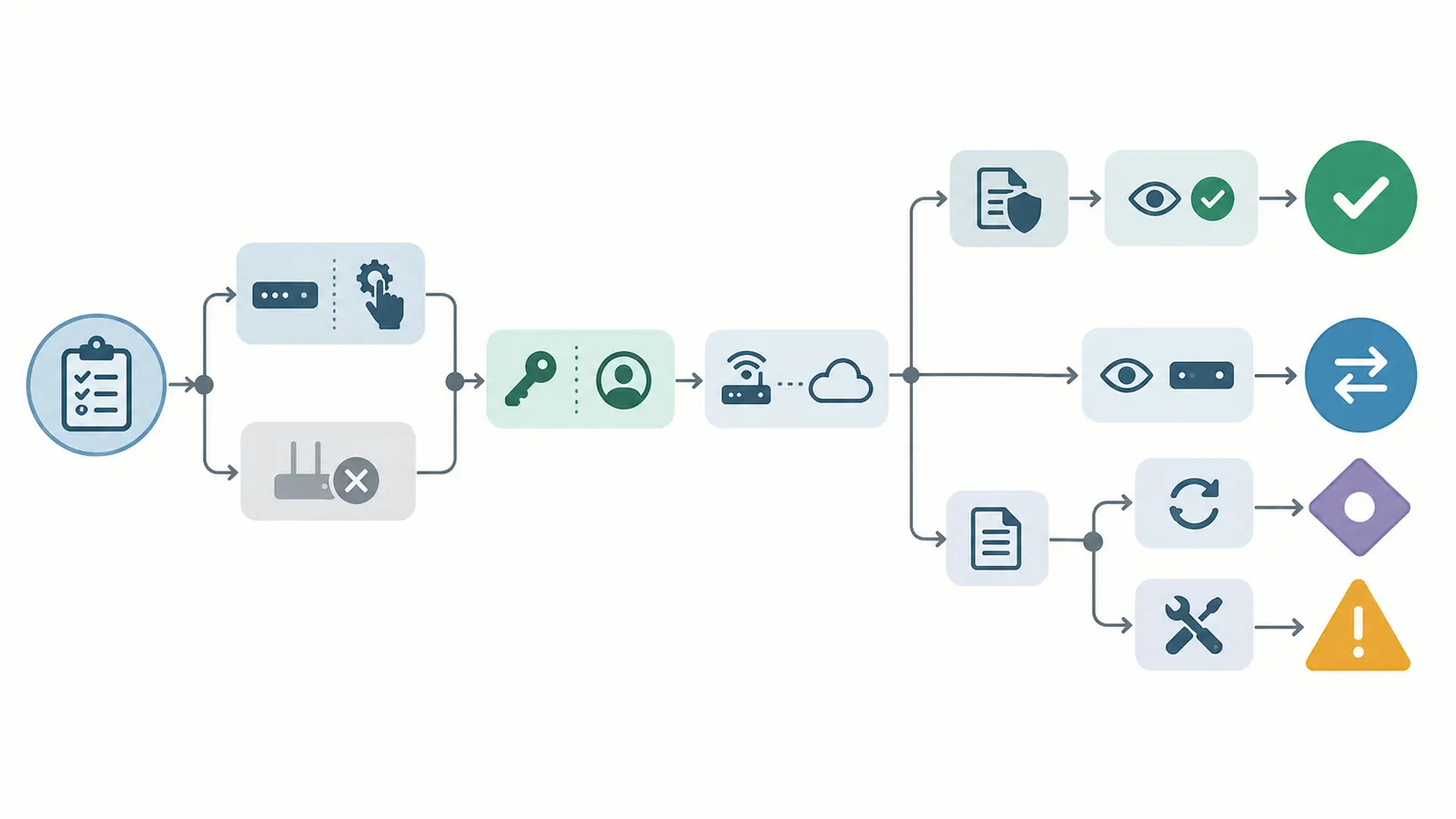
Use a staged sequence: preserve the baseline, identify the owner, prepare the homeowner account and network, transfer or reset one control, verify its local and remote behavior, remove unnecessary access, record the warranty route, and only then move to the next integrated control. The order matters because a reset, Wi-Fi change, account migration, or subscription cancellation can alter what the next person can see or control.
Stage 1: freeze and record the baseline
Before making changes, record the state that the builder says is delivered. For each device, capture the model and location, the name shown in the app, the displayed owner or administrator, visible users or roles, connected hub or bridge, Wi-Fi path, subscription name if displayed, and the current local setting. Do not copy credentials or private camera history. If the builder claims the system has been commissioned, request the commissioning record, zone map, and any exceptions.
For HVAC, record the zones and the intended equipment association. For a leak system, record sensor locations, the physical shutoff location, the normal valve state, and the manual override described by the installer. For a lock, record the key and local keypad arrangement without sharing the code in the general punch list. For a camera, record intended field of view, privacy settings, notification recipients, and retention plan without exporting footage.
The baseline protects both sides. If a schedule disappears after a reset, the homeowner knows it was present. If an installer says a device was never connected, the homeowner has the recorded model and location. It is not a forensic record and does not prove defect; it is a handover state record.
Stage 2: establish the homeowner identity and network
Use a homeowner-controlled email address and individual account. Create or confirm multifactor authentication where the platform offers it, and store recovery methods privately. Do not let an installer type the homeowner’s password into a device while the homeowner cannot see the screen. If an installer must configure a system, use the platform’s documented invitation or temporary role rather than a shared owner password.
Decide whether the homeowner’s permanent Wi-Fi is ready. If the router or network name will change after closing, do not confuse temporary connectivity with a finished handoff. Google notes that changing a Wi-Fi name or password can disconnect Nest thermostats and other devices; its moving instructions describe a device-specific reconnect or disconnect-and-setup path. Flair likewise tells buyers to clear Wi-Fi credentials on specified Gateway Pucks and Bridges before reconnecting them to the new network, as described in Flair’s transfer procedure.
The homeowner does not need to reveal the Wi-Fi password to the builder’s representative. Where a device must be joined during the appointment, the homeowner can enter it directly or use the manufacturer’s approved setup path. Record whether the device is on the homeowner’s primary network, a separate home-device network, Ethernet, or cellular service. Do not claim that a particular network arrangement is required unless the manufacturer or network professional says so for the model.
Stage 3: transfer the account before removing the installer
If the platform supports an ownership invitation, send it to the homeowner’s account and accept it while the current owner is still available. This preserves a controlled handoff and gives the homeowner a chance to see the home, devices, settings, and roles before the installer disappears. Flair’s documented installer-to-customer flow is explicit: the installer enters the customer email, chooses “Transfer home to another user,” sends an invitation, and the customer accepts it with a Flair account. The Flair transfer page also tells a buyer to begin by accepting the invitation.
Do not assume that an invitation makes the homeowner the only administrator. After acceptance, inspect the user list, home members, installer access, partner integrations, service accounts, and recovery contact. Google’s permissions documentation shows why role labels need attention: a member’s Activity or Settings permissions can include device history, camera and lock history, controls, settings, automations, and some subscription settings. Use the Google Home permissions guide to understand that platform’s labels, then apply the same question to any other platform without assuming identical roles.
Ask the builder or installer to remove access they no longer need. If ongoing service is part of the contract, retain the intentional support role and record its scope, expiry, and removal process. “Installer access retained for warranty support” is materially different from “installer remains owner of the home.” Record both the role and the reason.
Stage 4: reset only where the manual requires it
Some systems transfer by invitation; some require account removal and a factory reset; some use a local reset to clear Wi-Fi but preserve the cloud home; some require manufacturer support when a prior account remains. Google’s moving guide says that several listed devices should be removed from the app and factory-reset before being given to another person, and warns that the reset clears data and cannot be undone. Follow the Google moving guide for a listed Google/Nest model, but do not extend its steps to another brand.
Before resetting, decide what must be preserved. Save the model and serial number, the builder’s delivered settings, the zone map, subscription and warranty references, and the date and reason for the reset. Do not preserve private camera footage merely because it is available. If footage or account history may be relevant to a dispute, ask the builder or appropriate adviser how to preserve it lawfully and securely before deleting it. A reset is an ownership step, not a substitute for a defect diagnosis.
When a camera, lock, leak shutoff, or HVAC controller is integrated with another device, map the dependency first. Resetting the endpoint may leave the bridge or automation with a stale device identity. Resetting the bridge may disconnect every downstream control. The person who knows the platform account may not know the physical system. Have the responsible integrator explain the dependency before a broad reset.
Stage 5: handle subscriptions and network changes separately
Account ownership and billing ownership are not the same. Identify subscriptions for camera history, professional monitoring, cellular backup, remote support, energy services, or other cloud features. Record who pays, what the service provides, what happens if it is canceled, and whether the homeowner wants it. Do not accept a subscription transfer without reading the model’s current terms.
Google’s moving guide specifically tells a departing owner leaving a listed Nest battery camera or doorbell to cancel the associated Google Home Premium subscription. That is a platform-specific step, not a rule that every homeowner should cancel every subscription. The Google guide is the source for that narrow case. For a new owner, the next action may be to open a new subscription, transfer billing, or accept loss of cloud history after understanding the consequence.
Make the permanent network change at a controlled time. Change or reconnect one dependency, wait for the device to return, and verify the downstream function. If several devices vanish, stop and restore the documented prior state or call the responsible integrator. Do not create a duplicate home, duplicate zone, or second owner account just to make an app tile appear.
Stage 6: verify and close the handoff
A row is not closed when the homeowner receives an email. Close it when the homeowner can sign in independently, sees the intended home and device, performs the relevant local test, confirms the app or cloud behavior that the homeowner actually intends to use, sees the right users and subscriptions, and has a warranty route. Record pass, fail, not applicable, or pending, with the next owner and date.
At the end of the session, ask the builder’s representative to sign or acknowledge the list of unresolved rows. Do not assume that signing or acknowledging the list preserves, waives, or changes any right; check the actual acknowledgment and contract, and seek qualified local legal advice in the home’s jurisdiction when rights or deadlines are at issue. The record simply makes the state and follow-up visible. Use the FTC’s new-home warranty guidance for the general record-keeping principle.
How should you hand over thermostats, zoning, leak controls, locks, cameras, and other systems? #
Handle each control by its controlled building function first and its app second. The local demonstration should be appropriate to the model and trade system, and the homeowner should not perform wiring, mechanical adjustment, lock disassembly, valve forcing, alarm bypass, or unsafe access work. The app transfer is necessary for ownership but does not prove the underlying building system was installed or commissioned correctly.
Thermostats: prove both the screen and the equipment path
For a thermostat, record the exact model, app, account owner, temperature sensors, schedule, operating modes exposed by the manual, HVAC equipment association, and zone name. Ask the HVAC contractor to explain what the thermostat is permitted to control and what the homeowner should observe during a normal call. The homeowner can observe the display and app state and can request a demonstration; a qualified HVAC professional should handle wiring, equipment access, refrigerant, combustion, electrical diagnosis, or changes to configuration.
The verification result should separate three observations:
- the thermostat accepts a local user input;
- the expected equipment responds in the intended zone;
- the homeowner account can view and change the intended setting remotely, if remote control is part of the delivered scope.
Do not turn a handover into a stress test by commanding heat and cooling repeatedly, overriding safeties, or changing installer parameters. A homeowner’s local setpoint change is not proof of airflow, capacity, duct balance, staging, or code compliance. If the display changes but the HVAC professional cannot demonstrate the intended response, mark the row escalate to the builder and HVAC contractor.
If the platform uses multiple apps, record which one sets up the device, which one controls it, and which features are app-specific. Google’s account FAQ says device control can remain split between the Nest and Google Home apps depending on the product; the FAQ is a useful example of why “the app” is not a sufficient handover field. The homeowner should know the app dependency before the installer leaves.
Zoning: map rooms, zones, controllers, and responsibility
Zoning adds a handoff layer because the thermostat, room sensor, gateway, damper controller, and app may each have a different identity. Request a written zone map: room, thermostat or sensor, zone name, controlled equipment, gateway or bridge, and the professional responsible for changes. Compare it with the builder’s HVAC scope and the physical labels.
Flair’s buyer workflow illustrates the need for this map. After a smart-thermostat integration, Flair says a zone is created with the thermostat’s name and instructs the buyer to add every controlled room to that zone to complete the configuration. That is a Flair-specific procedure documented in Transfer a Flair Home, not a universal HVAC zoning rule.
For a Flair installation, use the documented invitation and buyer flow, clear Wi-Fi only on the specified Gateway Pucks or Bridges, reconnect them, integrate the thermostat, and complete the room-to-zone mapping. For another system, use that system’s manual and installer instructions. Never infer that a room listed in an app is physically connected to the intended damper or equipment. Ask the HVAC or controls professional to demonstrate the observable response for each zone without exposing the homeowner to electrical or mechanical hazards.
Leak controls: separate detection, notification, and shutoff
A connected leak system may include a sensor, a hub, a siren or notification, an automatic shutoff valve, a manual valve, and a subscription. Inventory them separately. A sensor that reports water is not the same as a valve that can stop flow. A valve that closes locally is not necessarily a valve that can be commanded remotely. A notification may depend on internet or cellular service. The matrix must contain one row for the sensor and one for the valve when ownership, power, or warranty responsibility differs.
Ask the plumber or installing professional to show the normal valve state, the manual override, the physical location, the meaning of indicators, the power and battery arrangement, and the manufacturer’s test procedure. If the system provides a test mode, use only that procedure. Do not shut off the home’s water during an occupied handover without warning, and do not force a valve, remove a cover, or alter plumbing. A qualified plumber should handle a stuck valve, leak, pressure problem, pipe modification, or any test that could cause damage.
The homeowner’s verification record should say what was tested and what was not. For example: “Sensor test alert received by homeowner account; automatic shutoff test deferred to plumber because manual requires system-specific procedure; physical valve location documented; subscription owner pending.” That is more useful than “leak system works.” Do not infer fail-safe behavior, freeze protection, water-quality protection, or insurance benefit from an app alert unless the manual, contract, or insurer says so.
There is a separate, explicit water-quality boundary: a connected leak sensor, shutoff, or app alert cannot diagnose contamination, identify germs or chemicals, or establish that water is potable and safe to drink. If contamination is suspected, do not treat a functioning alert as clearance to drink or cook with the water; follow any advisory and contact the water utility or local health department. For a private well, contact the local health department and a qualified well or water-quality professional for testing and next steps; for a plumbing-side concern, ask the builder to route it to a qualified plumber. CDC gives the water-utility and health-department route for suspected harmful germs or chemicals in tap water in its water-quality guidance. The appropriate authority is the one serving the home’s actual state and local jurisdiction, not a generic app support channel.
Locks and access controls: establish a local entry path before cloud convenience
For every connected lock or entry control, verify the physical key or other documented local path, the local keypad or button behavior, the homeowner’s own code or credential, the removal of builder and installer codes, the battery status, and the relationship to any hub, alarm, or access service. Keep the emergency key and the manufacturer’s recovery instructions in the homeowner’s controlled records.
Do not disable an alarm, change a monitored access system, drill a lock, remove door hardware, or alter egress hardware as part of a casual app transfer. If the lock is part of a monitored alarm or access-control system, the local rules and contract may involve the authority having jurisdiction, a licensed or otherwise qualified alarm professional, the monitoring company, or the builder’s designated provider. This guide does not determine which rule applies in the state, county, city, or town where the home is located.
The account test is broader than unlocking from a phone. Check who can add users, view history, issue codes, change schedules, and integrate the lock with automations. Google’s permissions guide specifically lists camera and lock history among activity that can be exposed through permissions; use the Google documentation as a platform-specific example, then inspect the exact role model for another brand. A builder’s retained admin may be able to change more than a guest code, so record the role, not merely the number of users.
Cameras and video doorbells: ownership includes history and viewers
For cameras, inventory power, location, field of view, privacy settings, microphone and audio settings where applicable, app, account owner, viewers, administrators, cloud storage, history retention, notifications, and subscription. Ask whether the camera is intended to remain active during construction punch work, whether the builder has a documented support role, and when that role ends. Do not share or download worker footage simply to make a handover record.
Run an owner-account check, a viewer-list check, a live-view check, and the documented notification or recording check. Keep the checks separate: a live view can work while a previous user remains authorized; a notification can work while cloud history is unavailable; a camera can show a picture while the homeowner is not the billing owner.
Google documents a particularly important transfer exception. For a Nest camera set up in the Nest app and still associated with another account, Google says the new owner may have to wait for the current video history to expire—up to 60 days, though it may happen sooner—before pairing it to the new account. The Google moving guide supports marking such a row escalate or document with a due date rather than repeatedly factory-resetting it or claiming the transfer is complete.
If the old account has camera history that should not transfer, ask the current owner to follow the manufacturer’s removal process and confirm what the new homeowner will and will not receive. If the new homeowner wants a subscription, read the current plan’s device coverage, retention, billing, and cancellation terms. Google’s instruction to cancel a specific Google Home Premium subscription when leaving a listed camera shows why the departing and arriving billing actions must be recorded separately.
Other installed controls: follow the controlled function
Other connected controls can include doorbells, garage controls, motorized shades, lighting scenes, irrigation, ventilation, energy monitors, hubs, and whole-home interfaces. Do not expand the article into a product catalog. Apply the same questions:
- What physical action or building function is controlled?
- What local button, switch, key, manual release, or fallback exists?
- What app, hub, cloud, subscription, or network is required?
- Who is the owner and who can change or observe it?
- What does the builder’s scope say, and which trade can safely verify it?
For a garage control, ask the installer to demonstrate the local wall control and the documented manual release rather than pulling mechanisms or adjusting springs. For motorized shades, record local controls and the power-loss behavior without reaching into a headrail or modifying wiring. For lighting or ventilation scenes, distinguish an app automation from the underlying wall control and circuit. For a hub, map downstream devices before resetting it. These are safety boundaries, not product-performance claims.
How do you verify that the handoff is complete? #
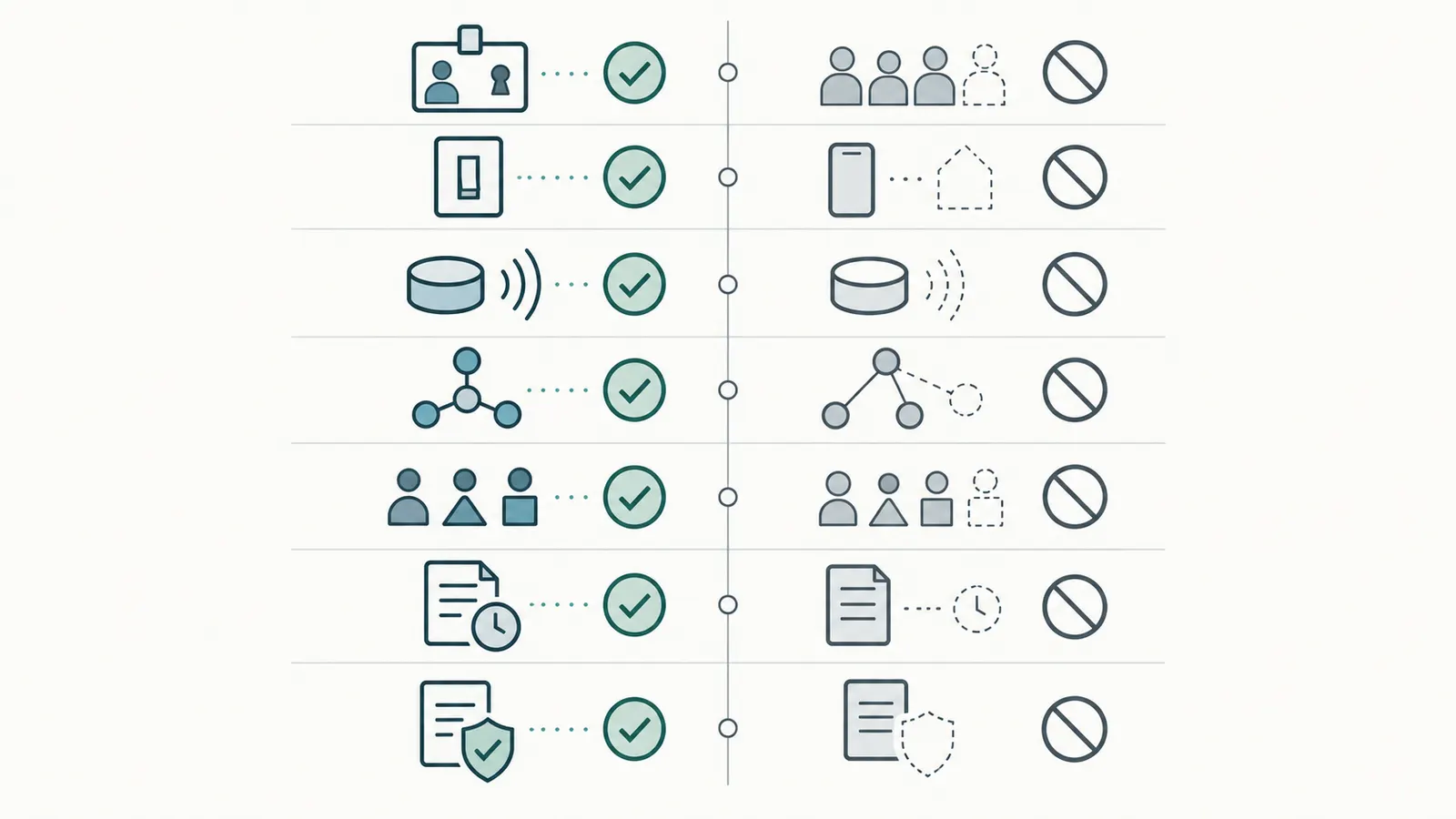
Verify in layers, from the physical device outward: identity, local control, controlled system, network, account permissions, subscription and history, warranty route, and records. A failure at an inner layer should pause confidence in outer layers. If the physical model is unknown, an app test cannot close the row. If local operation is unknown, remote operation cannot prove the function is available during an outage.
Use a repeatable verification log
For every matrix row, record:
| Verification layer | What the homeowner observes | What the observation proves | What it does not prove | Result and next action |
|---|---|---|---|---|
| Identity | Model, location, serial or device ID match the handover record | The row is tied to a specific installed item | It does not prove correct installation | Pass, or ask builder/trade to identify it |
| Local control | A documented local input or fallback produces the expected visible response | A local path exists for the tested function | It does not prove all system performance or safety | Pass, document limitation, or escalate |
| System response | The responsible trade demonstrates the intended equipment or actuator response | The named control is associated with the intended function in this test | It does not prove design, capacity, or code compliance | Record observation and trade responsibility |
| Network path | The device reconnects to the homeowner’s documented network path | The tested network dependency is known at this moment | It does not prove future internet availability | Pass or troubleshoot with installer/ISP |
| Account and roles | Homeowner signs in; old roles and viewers are removed or intentionally retained | Ownership and permissions match the decision | It does not prove the password is strong or an unknown third-party integration is absent | Pass, remove, or escalate |
| Subscription and history | Billing owner, retention, monitoring, and cancellation effects are recorded | Service dependency is visible | It does not prove service quality or insurance coverage | Document, transfer, or cancel under terms |
| Warranty and records | Model, invoice, warranty, claim route, and responsible company are stored | A next handoff exists if the control fails | It does not prove coverage | Pass or request written clarification |
The “proves” and “does not prove” columns prevent over-reading a test. The homeowner is recording evidence of a handoff state, not certifying electrical safety, HVAC design, water protection, alarm compliance, cybersecurity, or product performance. That distinction is especially important when the builder presents a polished dashboard: the dashboard can be correct at the account layer while the controlled system still requires professional verification.
Verify local operation without creating a hazard
Use the manufacturer’s normal user control and stop if the response is unexpected. Do not remove covers, expose conductors, bypass interlocks, force a valve, adjust a damper, defeat a lock, climb to a camera, or enter an attic, crawlspace, roof, shaft, or confined area for a better test. Electrical, mechanical, plumbing, lock hardware, and alarm work belongs to a qualified professional under the applicable local requirements.
For an HVAC control, observe the screen and ask the HVAC professional to confirm the intended equipment response. For a leak system, use the model’s documented sensor-test procedure or have the plumber demonstrate it. For a lock, test the local path with another adult present and keep the physical key or documented recovery path available; do not create an accidental lockout. For a camera, use live view and the documented alert or recording test while protecting private areas. For a gateway, check that downstream controls remain represented after the network action.
If a control’s safety function depends on cloud service, remote monitoring, or an account that has not been transferred, do not represent the cloud path as the only accepted operating path without a specific manufacturer and professional determination. Mark it escalate. The correct next decision may be to retain the installer’s support role temporarily, obtain a local fallback, change the system scope, or accept the service dependency knowingly after it is documented.
Verify account ownership without exchanging secrets
The homeowner should complete the sign-in from the homeowner’s own device. Ask the current owner to navigate to the user or member screen, but do not ask them to disclose their password. Confirm the homeowner can recover the account through a homeowner-controlled email or phone, that the homeowner appears in the intended owner or administrator role, and that unneeded builder, installer, construction, real-estate, or prior-resident access is removed.
Then inspect integrations. A platform may be linked to voice assistants, partner apps, monitoring services, shared family accounts, or a property-wide hub. Record each intentional integration and the account owner. Remove an integration only when the homeowner understands what function it provides and the manufacturer’s instructions allow it. A voice assistant or shared automation may provide access to multiple devices; do not assume deleting one app tile removes all linked access.
Use individual accounts for family members and service professionals where the platform supports them. CISA’s public digital-home guidance advises protecting usernames and passwords and using stronger account practices such as multifactor authentication when available. That guidance supports the handover rule “never exchange the homeowner’s owner password as a commissioning shortcut”; it does not establish that every platform offers the same controls.
Verify the network transition in a narrow window
If Wi-Fi changes are part of the handover, identify the affected device and its dependent controls before starting. Record whether the device can be reconfigured without factory reset, whether the local fallback continues during the change, and whether the bridge must be cleared first. Change one dependency at a time. After reconnecting, verify both the app representation and the controlled function.
Google’s moving guide says a thermostat and other devices may disconnect after the Wi-Fi name or password changes, and Flair’s transfer procedure gives a gateway-specific credential-clearing process. These are precise model/platform instructions, not evidence that every device needs a reset. If the homeowner’s network is temporary at closing, mark the row pending and schedule the permanent transition; do not mark it accept merely because it auto-connected to a temporary network.
Verify updates as a maintenance handoff, not a surprise upgrade
Record the manufacturer’s update path, current software or firmware version if shown, automatic-update setting, and the person responsible for future account recovery. CISA’s guidance recommends enabling automatic updates when available to help defend against current risks; see the CISA digital-home PDF. The homeowner should still read the model’s update notes and understand whether an update can change app compatibility, integrations, settings, or support status.
Do not update every device during the closing appointment unless the responsible installer or manufacturer instructs it. A version change can be a legitimate maintenance action, but it can also obscure whether a delivered system worked at baseline. Record the date, version, and any changed setting. If a safety or control issue appears after an update, provide that record to the builder, installer, or manufacturer rather than repeatedly resetting devices.
How do you preserve warranty, subscription, privacy, and local responsibility? #
Preserve the evidence and route each issue to the party whose contract or product terms govern it. A builder warranty, manufacturer warranty, paid service contract, subscription, and monitoring agreement are different relationships. The handover worksheet should show which one applies without promising coverage.
Route a defect by responsibility, not by convenience
The FTC explains that a builder warranty comes with new-home construction and generally concerns permanent parts of the home, while examples of coverage and duration vary by component. Its guidance discusses workmanship and materials and commonly identifies HVAC, plumbing, electrical, and structural categories, but it does not say every smart-home account or device is automatically covered by a builder warranty. Read the actual warranty and scope. The FTC’s new-home warranty explanation is a starting point for separating the categories, not a coverage decision for this house.
Use a practical routing order:
- If the problem is a missing device, incorrect location, incomplete zone map, missing manual, unfinished integration, or promised control not delivered, notify the builder in writing and copy the responsible installing trade.
- If the physical device appears defective and the builder scope excludes it or directs the homeowner to the manufacturer, open the manufacturer route using the model, serial, invoice, date, and installation details.
- If the issue is monitoring, cloud history, app access, or a paid support plan, contact the service provider under the subscription or service contract while preserving the builder’s handover record.
- If a plumber, HVAC professional, electrician, locksmith, or alarm professional must inspect or change the physical system, ask the builder who is authorized and use a qualified local professional.
The route can be shared. A leak shutoff may have a manufacturer warranty, a plumber’s installation obligation, a builder warranty, and a cloud subscription. Record the symptom and evidence without declaring which party is legally liable.
Understand warranty and service-contract differences
The FTC says a paid home warranty is really a service contract, not the same thing as a warranty, and that service contracts can cost extra, duplicate included coverage, or cover only part of a product. The FTC service-contract guidance supports a separate matrix field for “service/subscription” rather than putting every promise under “warranty.”
At handover, record:
- the issuer and named customer;
- the covered product or system;
- start and end dates;
- whether transfer to a new owner is required or prohibited;
- exclusions for installation, configuration, batteries, network, or cloud service;
- claim method and response expectations stated in the document;
- whether cancellation ends video history, monitoring, remote control, or stored settings;
- the evidence required, such as invoice, serial, installation date, or written defect notice.
Do not buy a new service contract simply because the handover is confusing. First determine whether the builder warranty, manufacturer warranty, installer obligation, or existing subscription already addresses the gap. The FTC notes that some service contracts overlap with included warranty coverage; compare documents before paying for another layer.
Write the first notice with enough evidence
If a handover defect may be covered, send a concise written notice using the contract’s instructions. The FTC advises checking the warranty, following its claim process, putting the request in writing, and keeping records of correspondence and conversations. See the FTC’s warranty-claim guidance. This is a record-keeping recommendation, not a substitute for a state-law deadline or legal advice.
The notice should include the address, room or system code, device model, date observed, exact symptom, test already performed, what the app showed, what local behavior was observed, the responsible trade if known, and the requested next action. Do not include passwords, door codes, recovery tokens, or unnecessary camera footage. Ask for a written reply naming the person responsible and whether the next action is account transfer, configuration, physical inspection, replacement, or documentation.
Protect privacy while proving the handoff
The homeowner is entitled to know who has access to the home’s controls, but the handover file should minimize sensitive content. Camera viewers, lock history, presence history, door schedules, Wi-Fi credentials, recovery codes, and homeowner email addresses can create a second security problem if copied into a broad construction thread.
Use a private owner record for secrets and a redacted punch list for responsibility. Keep camera views pointed only where intended, confirm privacy settings, and remove construction users when their work is complete unless an intentional support arrangement remains. If the home has an alarm or monitoring service, ask that provider how account ownership and installer support are represented; do not assume an app role is the same as local legal authority.
Make local rules a handoff question, not a guess
Rules for alarm monitoring, access control, cameras, privacy, electrical work, and egress can depend on the state and the local jurisdiction where the home is located. A national manufacturer help page cannot establish the rule for a particular municipality. Ask the builder for the permit or inspection contact when the control is part of a permitted system. Ask a qualified local professional when the change affects a locked exit, monitored alarm, wiring, HVAC equipment, plumbing, or a safety function.
The homeowner can safely collect the model, location, manual, account state, and observed behavior. The homeowner should not use this article to decide that a local alarm license is unnecessary, that a lock is code-compliant, that a camera placement is lawful, or that an automatic shutoff is a substitute for a plumbing inspection. Those are jurisdictional, contractual, or professional determinations.
What should you do when the handoff fails, and what is the next decision? #
When a handoff fails, preserve the current state, identify whether the failure is physical, account, network, subscription, documentation, or responsibility-related, and assign the next action to the builder, manufacturer, installer, service provider, or qualified local professional. Do not compound an ownership problem by repeatedly resetting devices, sharing credentials, changing wiring, or deleting history.
Failure matrix
| Observed failure | Do not infer | Safest next action | Evidence to bring | Next decision |
|---|---|---|---|---|
| App says device is already linked to another account | A factory reset will always release it, or the device is defective | Follow the exact platform transfer/removal procedure; ask prior owner or manufacturer support to release it | Model, app, account error, date, current owner, history/subscription state | Transfer, wait/document, or escalate |
| Homeowner accepts an invitation but installer remains owner/admin | Invitation means exclusive homeowner ownership | Inspect roles and request removal or documented support access | User list, role names, support term, written request | Accept after removal, retain intentionally, or escalate |
| Local control works but app is offline | The physical system has failed | Check documented network/cloud dependency; do not change wiring or replace equipment | Local test, app message, network state, manual | Document outage or call installer/ISP |
| App works but local fallback is unknown | Remote access proves the building function is safe | Ask the responsible trade to demonstrate the local path; mark unresolved | Model manual, local control location, app result | Accept only after confirmation or escalate |
| Wi-Fi change disconnects several devices | Every device needs a factory reset | Stop broad changes; restore the documented path or follow model-specific reconnect instructions | Old/new network state, affected rows, gateway topology | Reconnect sequentially or call integrator |
| Camera cannot be paired because old history remains | The homeowner should delete history blindly or wait without a record | Record the platform’s stated wait condition and contact current owner/manufacturer | Camera model, app, account message, date, subscription | Document with due date or escalate |
| Thermostat changes but intended zone does not respond | The app zone name proves physical zoning | Have the HVAC/controls professional verify the equipment association and zone map | Zone map, local display, observed response, model | Correct configuration under trade scope or escalate |
| Leak alert arrives but shutoff behavior is unknown | An alert proves the valve will close | Have the plumber follow the model’s test procedure; do not force the valve | Sensor location, alert, valve location, manual | Accept, document deferred test, or escalate |
| Lock app opens but builder code or viewer remains | The homeowner’s new code removed all old access | Remove old users/codes through the model’s documented path and retain a local entry method | User list, code-management screen without secrets, key path | Accept after test or escalate |
| No model, serial, manual, or warranty route | The installed control is owner-ready because it powers on | Put the missing record on the builder punch list and ask the installer to identify it | Photo of label, location, scope sheet, app name | Document or escalate |
| Subscription is still billed to builder or installer | Billing owner and device owner are automatically the same | Confirm service terms, transfer/cancel as permitted, and record history consequences | Plan name, customer, renewal, retention terms | Transfer, cancel, or document |
| Reset erased delivered settings | Reset was a harmless ownership action | Stop; notify builder and installing trade, preserve reset date and model | Baseline record, reset instruction, changed behavior | Restore documented settings professionally or claim |
The matrix distinguishes “not yet proven” from “proven defective.” That distinction saves time and protects the warranty route. If a camera is blocked by a platform’s account-history rule, the device may be operational even though the ownership transfer is incomplete. If a thermostat has no local demonstration, the equipment may be fine but the handover evidence is incomplete. If a leak system sends an alert but its valve is not tested, notification is proven and shutoff is not.
When to stop and call a professional
Stop homeowner testing and ask for qualified help when the next step involves energized wiring, control panels, HVAC equipment, refrigerant or combustion, plumbing disassembly, a motorized valve that resists movement, lock hardware or egress, alarm monitoring, roof or ladder access, confined spaces, or an unexplained safety behavior. Also stop when the builder or installer proposes disabling a protection feature to complete the app setup. The right professional depends on the function and the jurisdiction: HVAC contractor for HVAC configuration, plumber for a shutoff or plumbing issue, electrician for electrical work, locksmith or access professional for lock hardware, alarm professional or local authority contact for monitored systems, and the manufacturer or integrator for account topology.
Give that professional a compact packet:
- the exact model and serial or device identifier;
- a photo or location description that does not expose secrets;
- the controlled system and intended behavior;
- the last known good or baseline state;
- the exact observed failure and time;
- the app, account, network, and subscription state;
- the relevant manual or support page;
- the builder scope, warranty, invoice, and installer contact;
- the homeowner’s requested decision, such as “release installer account,” “verify zone association,” or “demonstrate safe manual fallback.”
This packet prevents the professional from spending the visit rediscovering who owns the app, and it avoids asking them to guess from an unlabeled dashboard.
A 30-day ownership sequence
Use the closing date as Day 0 and keep the sequence visible:
Day 0: receive and freeze. Collect the device list, models, manuals, scope, warranty contacts, account roles, subscriptions, network plan, and baseline. Accept only rows that meet the matrix gate. Record every pending row with an owner and due date.
Days 1–3: secure the owner layer. Sign in from homeowner-controlled devices, establish recovery methods and multifactor authentication where available, accept documented invitations, remove construction users, inspect integrations, and move billing or cancel services under their terms. Do not paste credentials into the punch list.
Days 4–7: complete the network and local checks. If the permanent network was not ready on Day 0, reconnect devices one dependency at a time. Verify local fallback, app control, alerts, zone association, and the lock’s local entry path. Have the relevant trade close physical or safety gaps.
Days 8–14: close documentation. Store manuals, serials, zone maps, valve locations, key recovery information, service terms, warranty routes, and verification dates. Send written warranty or punch-list notices for unresolved delivery or workmanship questions. The FTC’s guidance supports keeping written records and correspondence for potential warranty claims.
Days 15–30: review the first ownership period. Check that intentional installer support has a defined end, subscriptions are billed to the intended owner, camera and lock access lists remain correct, automatic updates are enabled where available, and the next maintenance responsibility is assigned. CISA recommends enabling automatic updates when available; the CISA guidance is general, so confirm the control’s actual update setting and support terms.
The next decision after the worksheet
At the end of the first ownership period, each row should lead to one of four decisions:
- Keep and maintain: the local function, homeowner account, network path, service terms, and warranty route are known; schedule normal maintenance from the manual and trade instructions.
- Keep with documented dependency: the device works but relies on a subscription, internet, cloud history, installer support, or a local professional; keep it only with the dependency and renewal or fallback action visible.
- Correct under warranty or trade scope: a delivered function, zone association, integration, or physical installation is wrong or incomplete; preserve the evidence and route it in writing.
- Replace or remove after a deliberate scope decision: the homeowner understands the local function, removal implications, warranty effects, and any jurisdiction-specific or professional requirements; removal is not a rushed response to an unfamiliar app.
The worksheet has done its job when the homeowner can answer, for every installed connected control: what it controls, how it works locally, which app or cloud service it needs, who can access it, who pays for the service, who repairs the physical system, what the builder promised, what was actually tested, and what happens next. That is the difference between receiving a collection of devices and taking ownership of a functioning home system.
When the handover rows are closed, continue the next home-ownership decision from Brictale’s homeowner blog, keeping this matrix with the home’s manuals and warranty records for the next service visit or future sale.
Cite this guide
Brictale. “How to Transfer and Secure Smart-Home Controls at New-Construction Handover.” Published 2026-09-27; updated 2026-09-27.
https://brictale.com/build/handover/transfer-secure-smart-home-controls-new-construction-handover · Read the Markdown version
Original contribution: Connected-control transfer matrix. A model-agnostic handover worksheet that classifies each installed connected control by owner, local fallback, cloud dependency, transfer action, warranty route, and recorded verification result.
Sources and scope
Evidence behind this page
- Google's moving guide instructs a departing owner to remove a supported device from the Google Home or Nest app and factory-reset it before giving it to another person; Google says the reset clears personal data and cannot be undone for the listed devices.
Moving guide for Google Home and Nest devices
Google Home and Nest devices covered by this help page, including listed speakers, cameras, doorbells, thermostats, locks, and other Nest products; not a universal instruction for every brand or model.
Accessed · Link to this claim - Google states that changing a Wi-Fi network name or password can disconnect a Nest thermostat and other home devices, and its supported thermostat handoff sequence includes disconnecting the old account and entering the new Wi-Fi information during setup.
Moving guide for Google Home and Nest devices
The Wi-Fi and thermostat procedures described by Google; other brands may use different network-change or reset steps.
Accessed · Link to this claim - Google says a Nest camera set up in the Nest app that is still associated with another account may require waiting for the current video history to expire before a new owner can add it, and that this can take up to 60 days but may happen sooner.
Moving guide for Google Home and Nest devices
Nest cameras set up in the Nest app as described by Google; not a national rule or a prediction for cameras using another platform.
Accessed · Link to this claim - Google's permissions guidance distinguishes home members' Activity and Settings access and states that those permissions can include device history, camera and lock history, device controls, settings, automations, and certain subscription settings.
Manage people and permissions in the Google Home app
Google Home app permission levels and listed Google/Nest home features; do not generalize the labels or capabilities to another platform.
Accessed · Link to this claim - Google says some Nest products continue to be set up or controlled in the Nest app after account migration while other Nest and partner devices use the Google Home app, so the homeowner should record the correct app and control path for each model.
FAQs about accounts for the Nest app
Google/Nest products and app behavior described in Google's account FAQ; app behavior is not a generic property of connected controls.
Accessed · Link to this claim - Google's moving guide tells a departing owner leaving a listed Nest camera or doorbell to cancel the Google Home Premium subscription associated with that device before transfer.
Moving guide for Google Home and Nest devices
Google Home Premium and the listed Nest battery camera and doorbell transfer case; subscription names and terms differ by provider and model.
Accessed · Link to this claim - Flair's transfer instructions direct an installer to enter the customer's email, choose transfer to another user, and send an invitation that the customer accepts with a Flair account; its buyer instructions likewise begin with accepting the invitation.
Flair Home account transfer workflow as documented by Flair, including the installer-to-customer and buyer cases.
Accessed · Link to this claim - Flair says that, for a buyer changing networks, existing Gateway Pucks and Bridges need their Wi-Fi credentials cleared; its documented steps include Forget WiFi for Gateway Pucks and a reset button for Bridges before reconnecting them to the homeowner's network.
Flair Gateway Pucks and Bridges covered by the cited transfer procedure; not a general instruction to reset every smart-home bridge.
Accessed · Link to this claim - Flair's buyer procedure says that after integrating a smart thermostat, the homeowner must add each controlled room to the thermostat zone to complete zoning.
Flair zoning configuration after a Flair Home transfer; it does not establish HVAC design correctness or apply to other zoning systems.
Accessed · Link to this claim - The FTC explains that a builder warranty comes with new-home construction and generally covers permanent parts of the home, while its examples say coverage periods and components vary and commonly distinguish workmanship/materials from HVAC, plumbing, electrical, and major structural defects.
FTC consumer guidance about common new-home warranty categories in the United States; the homeowner's contract and applicable state law control the actual coverage and dispute process.
Accessed · Link to this claim - The FTC distinguishes a paid home warranty or service contract from a warranty, explaining that a service contract costs extra and may overlap with or cover only part of a product warranty.
FTC explanation of service contracts and new-home warranties; not a determination of any particular builder, manufacturer, monitoring, or subscription agreement.
Accessed · Link to this claim - The FTC advises checking the warranty, following its claim instructions, putting a repair request in writing, and keeping records of correspondence and conversations with the builder or warranty company.
FTC consumer guidance for potentially covered new-home defects; it does not decide whether a connected-control access problem is covered.
Accessed · Link to this claim - CISA's public digital-home guidance treats thermostats, door locks, and smoke alarms as internet-connected home devices and advises protecting account information, including usernames and passwords, while using stronger account practices such as multifactor authentication when available.
5 Steps to Protecting Your Digital Home
CISA public guidance for connected devices in a digital home; it is general security guidance, not a device-specific audit or guarantee.
Accessed · Link to this claim - CISA's digital-home guidance recommends enabling automatic updates when available to help defend against current risks.
5 Steps to Protecting Your Digital Home
CISA's general update recommendation for internet-connected home devices; model support periods and update controls vary.
Accessed · Link to this claim - CDC advises that people with concerns about harmful germs or chemicals in tap water should contact their water utility or health department, and that private-well owners are responsible for testing and addressing the safety of their well water.
CDC consumer guidance for public tap water and private wells in the United States; it does not diagnose a particular home’s water or determine plumbing responsibility.
Accessed · Link to this claim